RSAS Resources > OSX Cheat Sheet for ResEd
Since many of you will be upgrading to OSX here are some helpful tips that are pertinent to Residential Education folks.
ResComp will show you these things if you ask them so if you haven't upgraded yet, be sure to ask them to go through these things with you.
I'm not a computer engineer. I don't have a degree in computer science so I can't help you with all your computer tasks. If you call and ask me to help figure out why you're computer isn't working there's a 95 percent chance I won't know :) That's why we have Rescomp.
NOTE: I have no idea how to connect your printer to your computer. ResComp had to help me with that and it wasn't a quick process.
These are just some possible answers to some typical questions when dealing with OSX and being a ResEd person. If you have better answers, do tell.
My Kronos isn't working
How do I launch the ResEd Server? Where's the Chooser?
Is there a shortcut to the ResEd Server?
How do I stop the icons in the Dock from getting big and small?
It's annoying....
How can I print from my office to ResEd's main printer at
306 Old Union?
My student worker can't login to my computer with his/her
ID. Why not? You need to create an account for them.
When my student worker logs on, none of my files are there
for her/him to use? What happened? Did they get erased?
Usually you would just type in https://kronosnf.stanford.edu/ in your browser and everything will work. But sometimes your system will give you an error message like this
Unhandled file
IE does not how to hadle the type of file you have selected
You can choose to save it or configure a help application to launch this file.
mime type application
Chances are you don't have Citrix installed properly. This program will make your computer recognize the "boilerplate.asp" program that's downloaded and launch Kronos properly.
Go here http://www.stanford.edu/dept/itss/services/citrix/dl_mac_osx/index.html
Follow the instructions. One important note. Reboot your system before running
Kronos so your mime types will configure correctly. If you don't understand
what this all means call Rescomp so they can help you through the process.
These instructions helped Brad Wong when it wasn't working for him so he's another resource you could ask.
How do I launch the ResEd Server?
You're not on OS9 anymore. There is no chooser. Go to your dock (that row of
applications on the bottom of your screen) and click on the Finder
Go to the top of the screen, click "Go" and scroll down to "Connect to Server". In the address field type this in if it's not there already "ResServer.Stanford.EDU"
Login as you normally do, pick the volumes you want and you'll see this icon
pop up on your desktop  .
Click on that twice and you'll see all the files in the ResEd server like you're
used to seeing in OS9.
.
Click on that twice and you'll see all the files in the ResEd server like you're
used to seeing in OS9.
Shortcut to launching the ResEd Server in the future after you've done the task above:
Click on the Finder icon in your Dock and a screen like this will pop up. This shows everything that's available on your system.
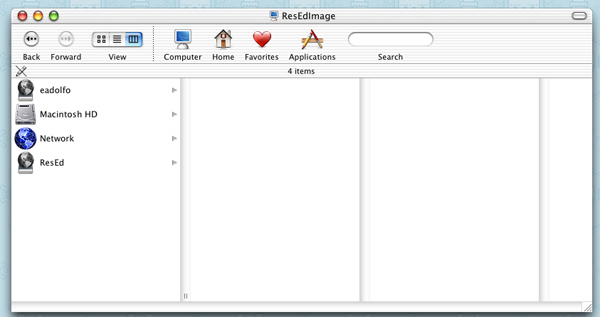
Take your mouse and push the button down over the ResEd icon. Hold the button down and drag it next the spot between Applications and the Search box. You'll notice that if you hold it there for a while the Search box scoots to the right. Let go of the button and you'll see the ResEd icon show up in the panel.
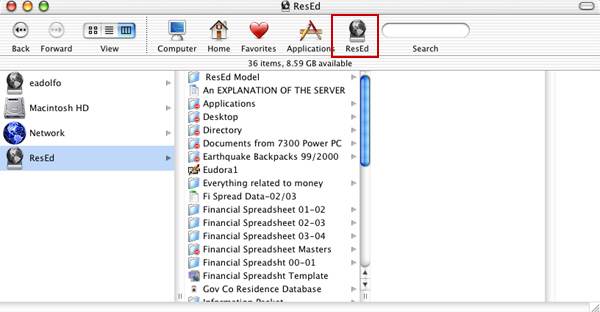
Now whenever you log out of your computer and want to launch the ResEd Server quickly, click on Finder, click on the ResEd icon that will stay in your Finder panel and it will launch for you. It will ask for your name and password but some people find this easier than going to finder, clicking on Go....blah blah blah.
How do I stop the icons in the Dock from getting big and small? It's annoying....
Some people like this. Some people don't. You have a choice to make it whatever you want.
Go the top of your screen and on the far left you'll see an Apple icon. Click on it.
Scroll down to System Preferences. You will then see this screen. Click on Dock.
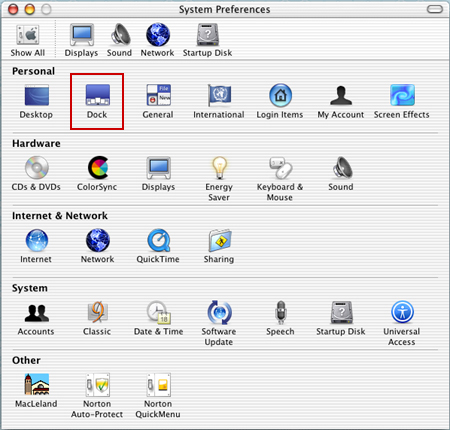
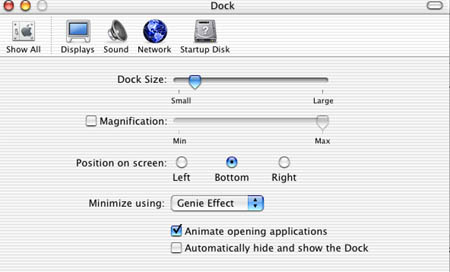
You will then see this screen. To stop that magnification action whenever you mouseover the dock icons just unclick "Magnification" and it'll stop. On this page you can also change the size of your dock and the intensity of your magnification.
Cool feature that Windows does NOT have is the Genie effect. That means when you double click on the title bar of any window the screen will slurp down into the dock rather than do a normal minimize. Pick Minimize using Genie effect and test it out. You'll see what mine.
How can I print from my office to ResEd's main printer at 306 Old Union?
According to Surajit, this is how
ITSS stopped routing AppleTalk between subnets in September 2003. The only way for you to be able to print to the ResEd Central printer from your office is over IP. The printer's IP address is 171.64.179.217, and it's an HP LaserJet 4000 series. With this info you'll probably be able to figure out how to set up the printer, but if you need help, call me and I'll talk you through it.
Michael Gray tried to make this work for him but I don't think it worked very well. If you're adamant about making this work call Rescomp. If not, just email me and I'll help you.
My student worker can't login to my computer with his/her ID. Why not? You need to create an account for them.
In OS9 the system pretty much let anyone in if you made it so in your preferences. OS X isn't as open.
You have to create an account for your student. When you login into OSX it's also logging you into Leland. ResComp set you up as an admin for your computer so your account knows to login and connect. It doesn't know that for your student until you create an account for them.
To create a new account go to the top, left and click on the Apple. Scroll down to System Preferences.
The System Preferences screen will open up. Click on Accounts
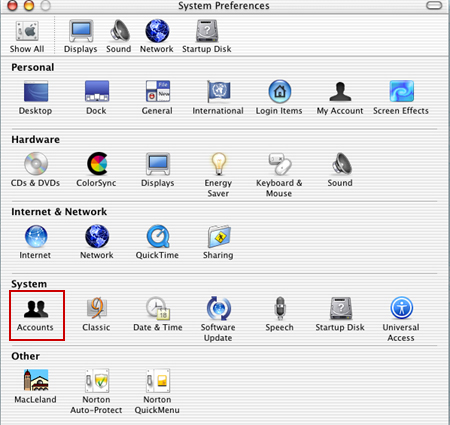
Click on "New User"
You should see the screen below. Enter your student's information and ask them to put in their password. This is the same information they use to connect to Leland. Don't worry, their information won't be shown to you. This will just allow them to use your computer. Any files you have on your desktop will NOT be accessible to this user and all the preferences you've set for your account will not show up for the student.
Do NOT click on "Allow user to administer this computer."
You and Rescomp should be the only people who can adminster this computer.
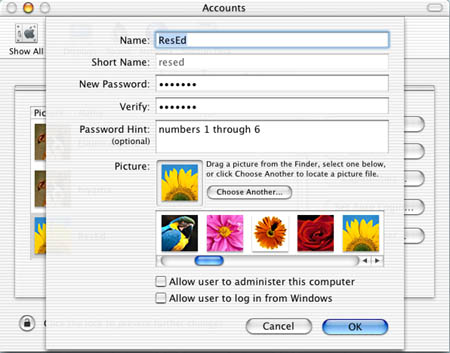
After you're done, click OK. Log Out of the system and have your student log in to see if it works.
When my student worker logs on, none of my files are there for her/him to use? What happened? Did they get erased?
OSX is all about ownership. My files are mine. Your files are yours. My files are on the desktop and you can't touch them....hahahaahahaha. Nothing has been erased, it's just not there for certain people to see...if you want it that way.
Basically if you want your student to have the ability to update files you give them, make sure the files are saved in the Documents folder.
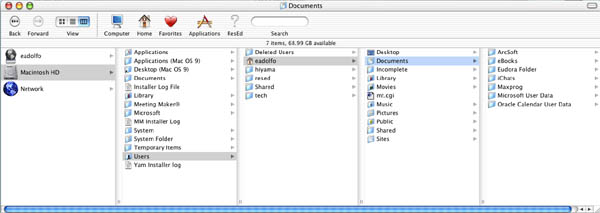
Double click on your hard drive and you'll see the Documents folder. This folder is accessible across all users.
You hard drive icon usually looks like this on your desktop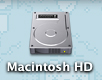 .
But perhaps you've changed it to Josh's Fun Palace. Whatever it is, click on
it twice.
.
But perhaps you've changed it to Josh's Fun Palace. Whatever it is, click on
it twice.
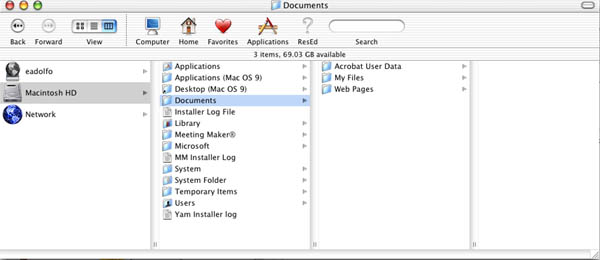
If your student is crafty and tries to get to your files they might click on Users in your hard drive and try to get to your documents saved under your name. But OS X won't let them. Mind you this works the other way as well. If your student saves a bunch of stuff on the desktop and saves nothing in the Documents folder you can't get to the files.
Remembers, it's the Documents folder in your hard drive that you want to save to.
There is a Documents folder under your name in Users. That is not the same thing. If you save stuff there your student will not be able to get to it so don't save there.